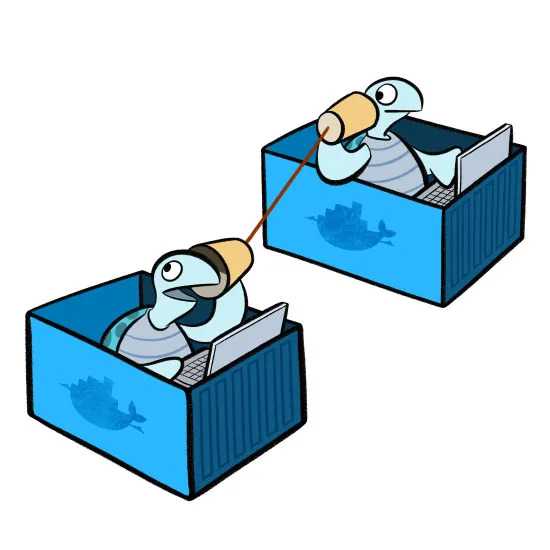
In my previous article I have written on Getting started with docker which provides a basic road map to get started with docker and volume mapping with docker which teaches us how to make a persistent data storage in docker . In this blog I am going to cover basic of Docker networking on local machine .
The recent buzz in the DevOps world is Docker . Docker is bringing more charm on virtualization world . Increasing number of companies are looking to implement Docker on production . The Docker community are growing exponentially which is a good news for Docker enthusiast as new features are being developed and the old features are modified to make it more usable .
As we all know containers are self contained isolated environment . This is possible due to cgroup and namespace functionality provided by linux kernel . But what is the use of kernel if we cannot make them talk with each other ? Now we will see the various ways how we could make linux containers communicate with each other . Before moving there we would make a basic setup in our local machine to perform the job .
setup During this setup I assume all of us have docker engine running on local host . If not , you could explore the installation part of docker based on your OS . Here I will be using ubuntu:16.04 as a base image . First of all let us create a container named as client . After creating the container we will update the container and install the curl command inside it .
docker run -it --name client ubuntu:16.04
apt-get update
apt-get install curl -y
Now we will commit the changes of the container and make a new image from there .
docker commit client client:latestAfter that we will create another container named as server and install a web server (apache2) inside it .
docker run -it --name server ubuntu:16.04
apt-get update
apt-get install apache2 -y
Then we will commit the changes and make a new image named as server:latest from it . docker commit server server:latest This is the basic setup part . Now we will explore the ways on which Docker container can communicate with each other and the host . It is through the Docker bridge , a docker0 inerface , that communication is possible amongst containers and between containers and the host machine. we can see Docker bridge by running the following command on localhost . ifconfig docker0 The bridge interface works locally, on a single Docker host, and is the connection mechanism behind all three approaches . EXPOSING PORT Here we will run a server container so that it will expose port 80 to other container . To do so we will run a expose command on docker run and start a apache web server inside it . Then we will note down the ip address of the recent container which is 172.17.0.2. docker run -it --name server_expose --expose 80 server:latest /etc/init.d/apache2 start ps aux | grep apache2 ip addr Now port 80 in the container named as server_expose is exposed to the other container . We will create a another container from the client:latest images and test whether the server container is accessible or not . Let us go into the next terminal and run the following command . docker run -it --name client_server_expose_test client:latest curl 172.17.0.2:80 After running a curl command in the client container we can see the server container's apache2 default page is accessed from the client container . This is possible due to the linkage between client and server container by expose command . PORT BINDING This method is used to expose our HTTP server to the host network . To expose the Apache HTTP server to the host network, we need to bind port 80 on the server container to port 80 on the host machine. In this way we could access the container's web service from the host network . docker run -it --name port_binding -p 80:80 server:latest service apache2 start Now from the host system , if we visit http://localhost:80 we will see the apache default page . LINKING CONTAINER Another approach of networking between the container is via linking container . When we link one container to another docker will make some information about the linked container via the environment file Let us create one server container and start apache2 inside it . docker run -it --name=server_link server:latest service apache2 start In next terminal , we have to run a client container and link it with the server container and curl the server container to see if it is accessible from the client container or not . docker run -it --name client_link --link server_link client:latest curl 172.17.0.2:80 Here in the client container we can see the apache default page has been accessed which means there is linkage between the two container . We are finally done . These are the ways by which we could link the container's with each other so that communication can be established between them and the host.